¶ Price Levels
Welcome to the Price Level page! Here, you can learn how to effortlessly set up price levels to streamline promotions and tailor pricing for diverse customer segments.
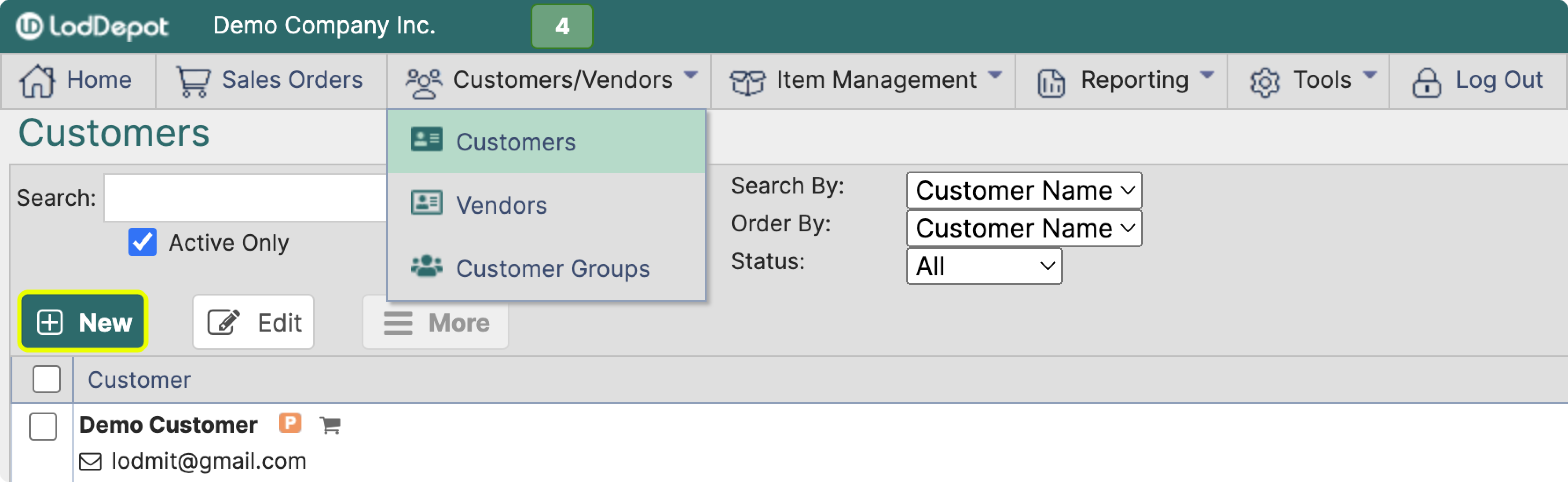
¶ Creating a New Price Level
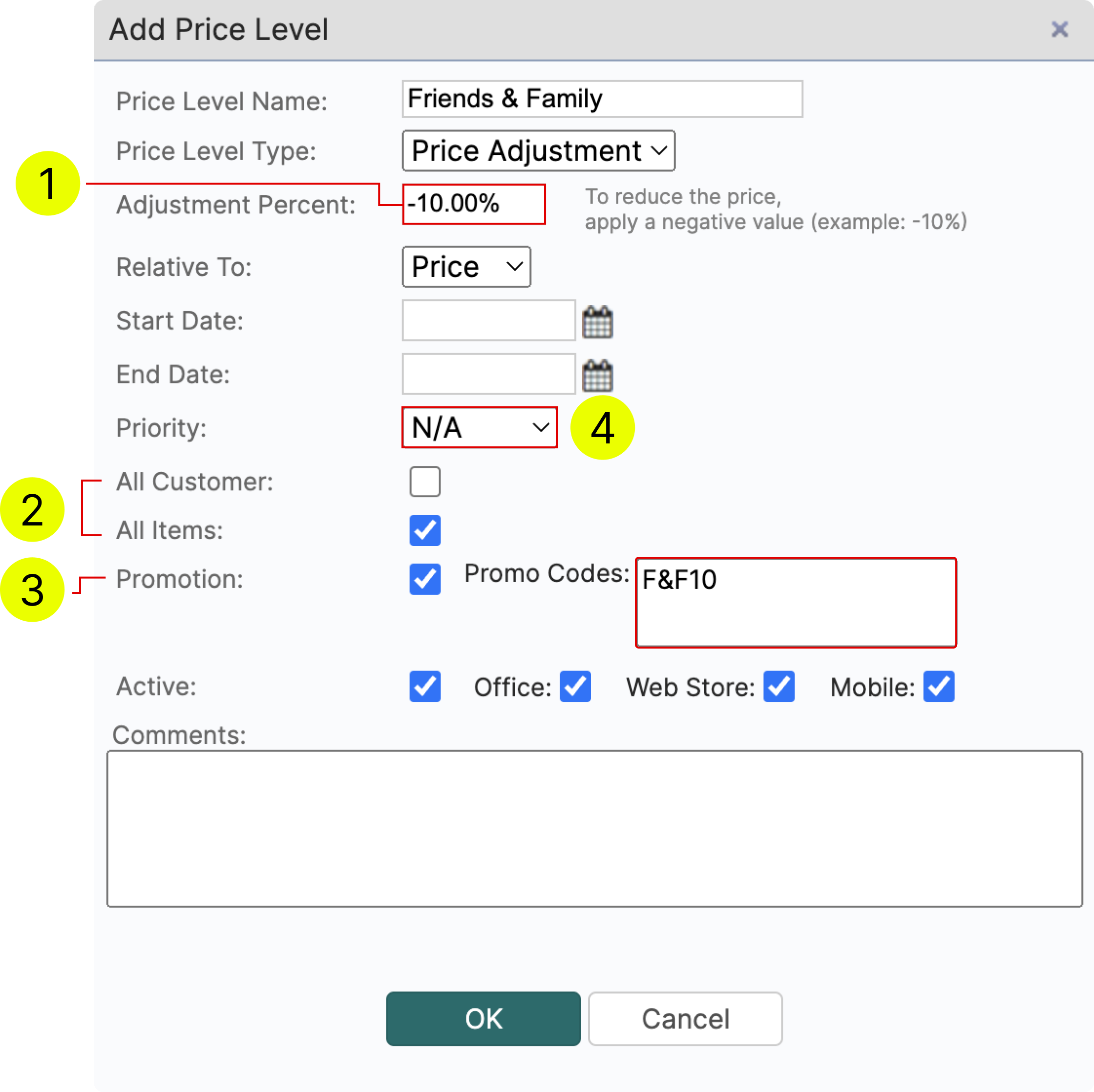
- Use this field if you want to adjust the price or cost by a fixed percent.
If you need to adjust pricing for each item separately, leave it blank.
You can make adjustments to single items latter even if you set a fixed percent. - Check these boxes if you want to apply the price level to all customers and/or all items.
You can edit this setting latter. - You can send Promo Codes to specific customers for them to apply
or select the customers who qualify for the promotion/price level manually.
If you are applying a fixed percent by using promo codes or have all customers selected, then you are done. Your new price level will take effect immediately.
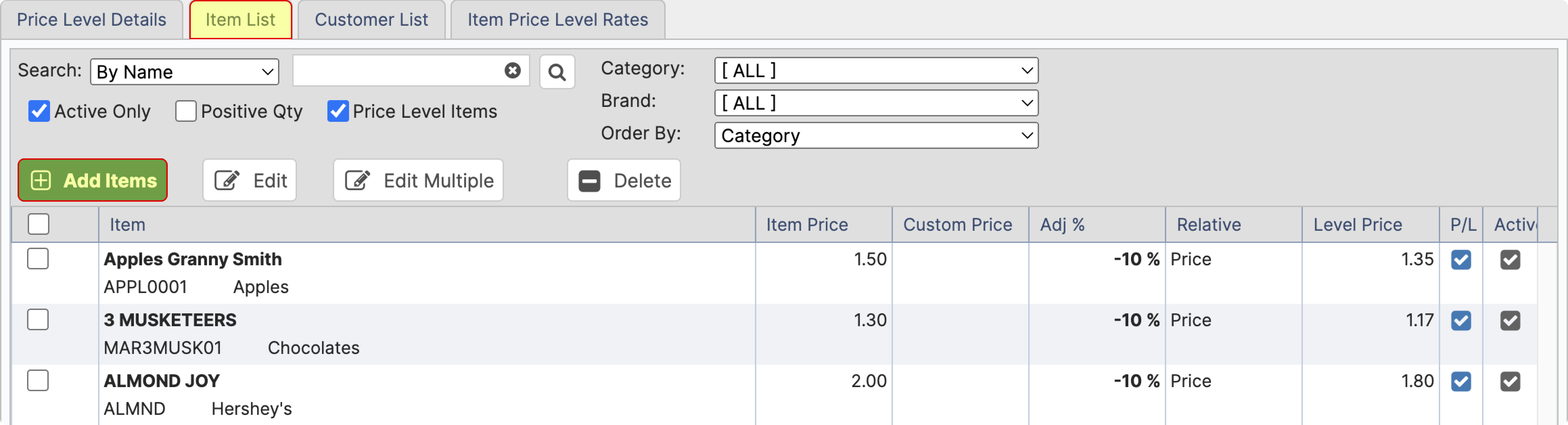
¶ Adding Items to a Price Level
Once you have a price level created. Select the price level, navigate to Item List and click Add Items
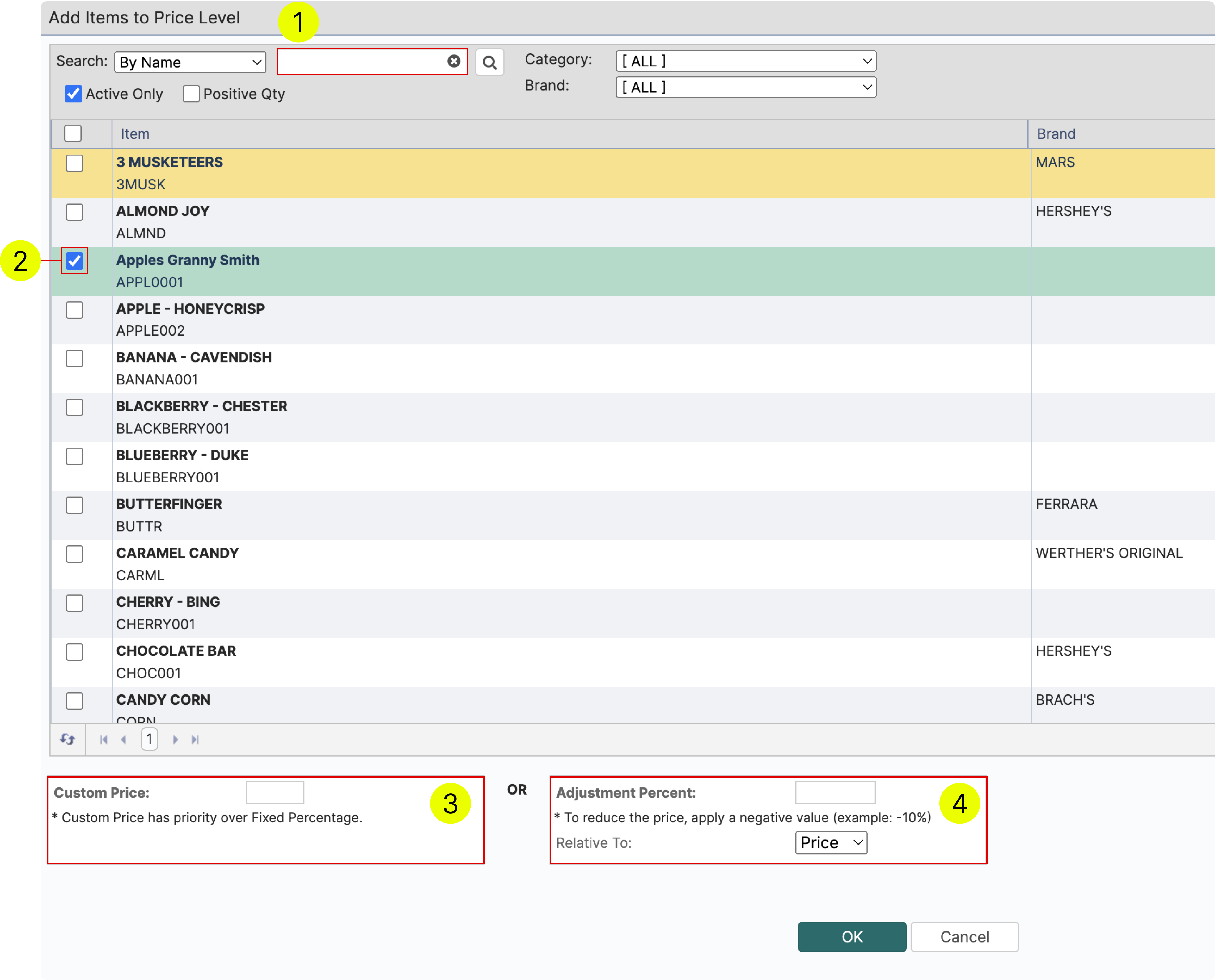
- Use search to quickly find the items that you wish to add to price level
- You can adjust items one by one or select multiple items at once if they have the same fixed price or the same discount %.
- To set a fixed price type the desired price in this field
- To set an adjustment % type the desired % in this field and select how wether the price or cost should be affected.
¶ Adding Customers to a Price Level
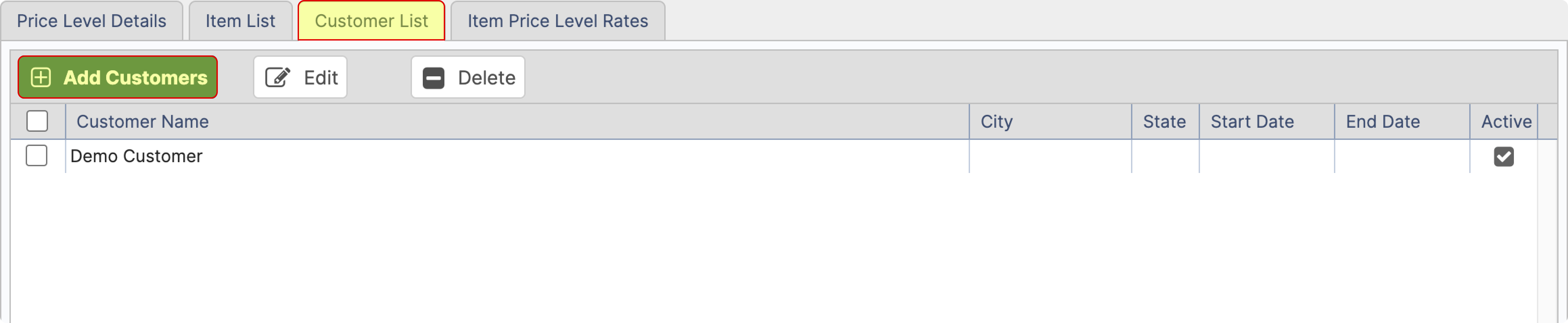
Once you have a price level created. Select the price level, navigate to Customer List and click Add Customers
- Select one or multiple customers and then click ok to add to the price level
¶ Editing an Item Within a Price Level
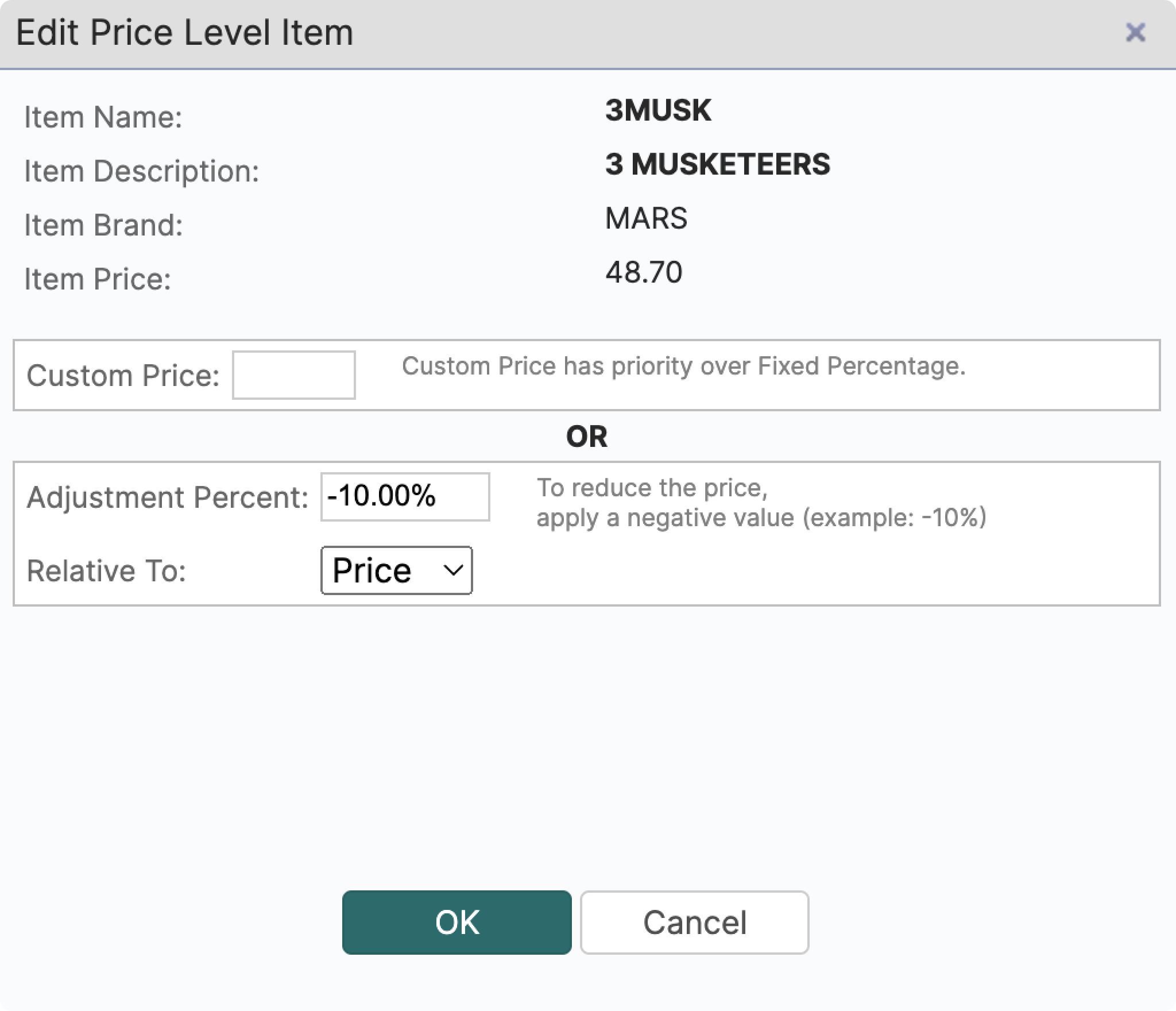
If you wish to edit the adjustment percent or set a new fixed price. Select the price level and an item within it. After that click edit and enter a new desired value. Click OK to save the changes.
¶ Promotions
Ability to send promo codes to the customers and allow them to apply these codes on the Web Store.
To activate this feature, navigate to Tools >> Settings >> Catalog Settings. In the Customer's Web Store section, check the "Enable Sales Promotions" option.
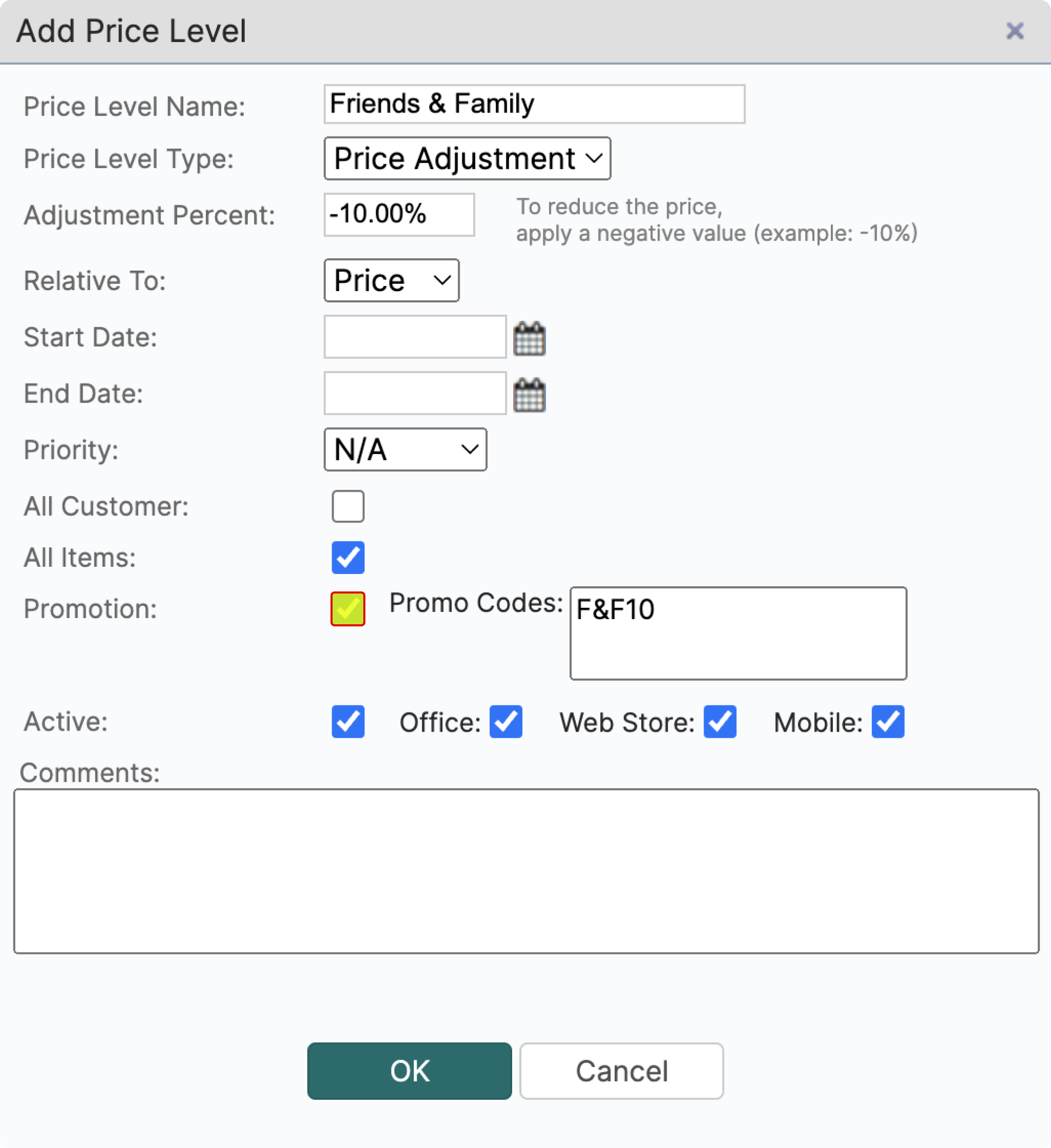
In Price Level Manager enable Promotion option in Edit Price Level screen and add promotion codes.
Multiple codes can be added to one promotion.
¶ Display Promotion Names as Item Tags on Web store
Promotional Price Level names can be displayed on the Web store for relevant items.
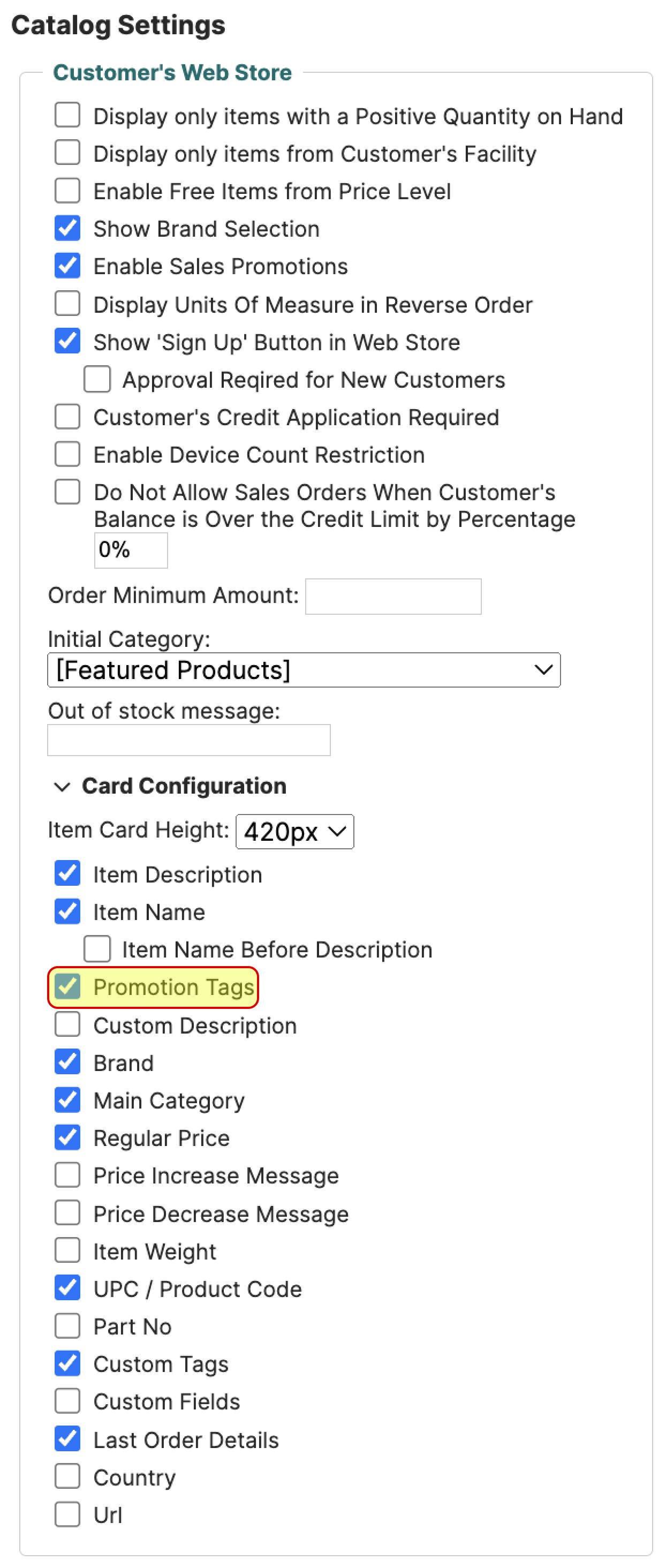
To activate this feature, navigate to Tools >> Settings >> Catalog Settings then in “Customer's Web Store” section expand “Card Configuration”, enable the “Promotion Tags” option.
In Price Level Manager enable Promotion option in Edit Price Level screen.
¶ Fixed Discount % Price Level
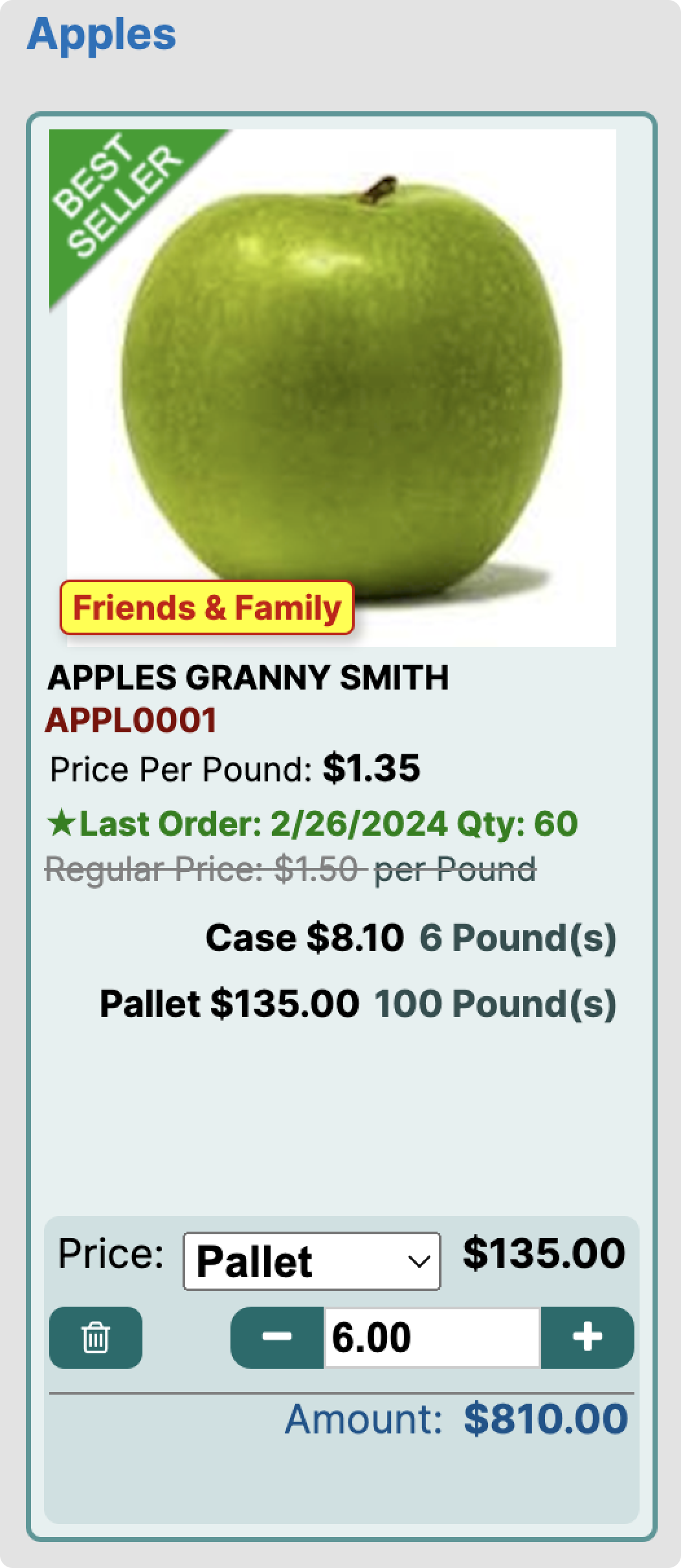
Example :
The item is eligible for the "Friends & Family" pricing level. For customers participating in this promotion, a corresponding tag will be visible on the Item card.
¶ Volume Discount
A volume discount is a price reduction offered to customers who purchase large quantities of a product.
To create Volume Discount price level navigate to: Item Management → Price Level Manager → Add
Select Volume Discount as a Price Level Type
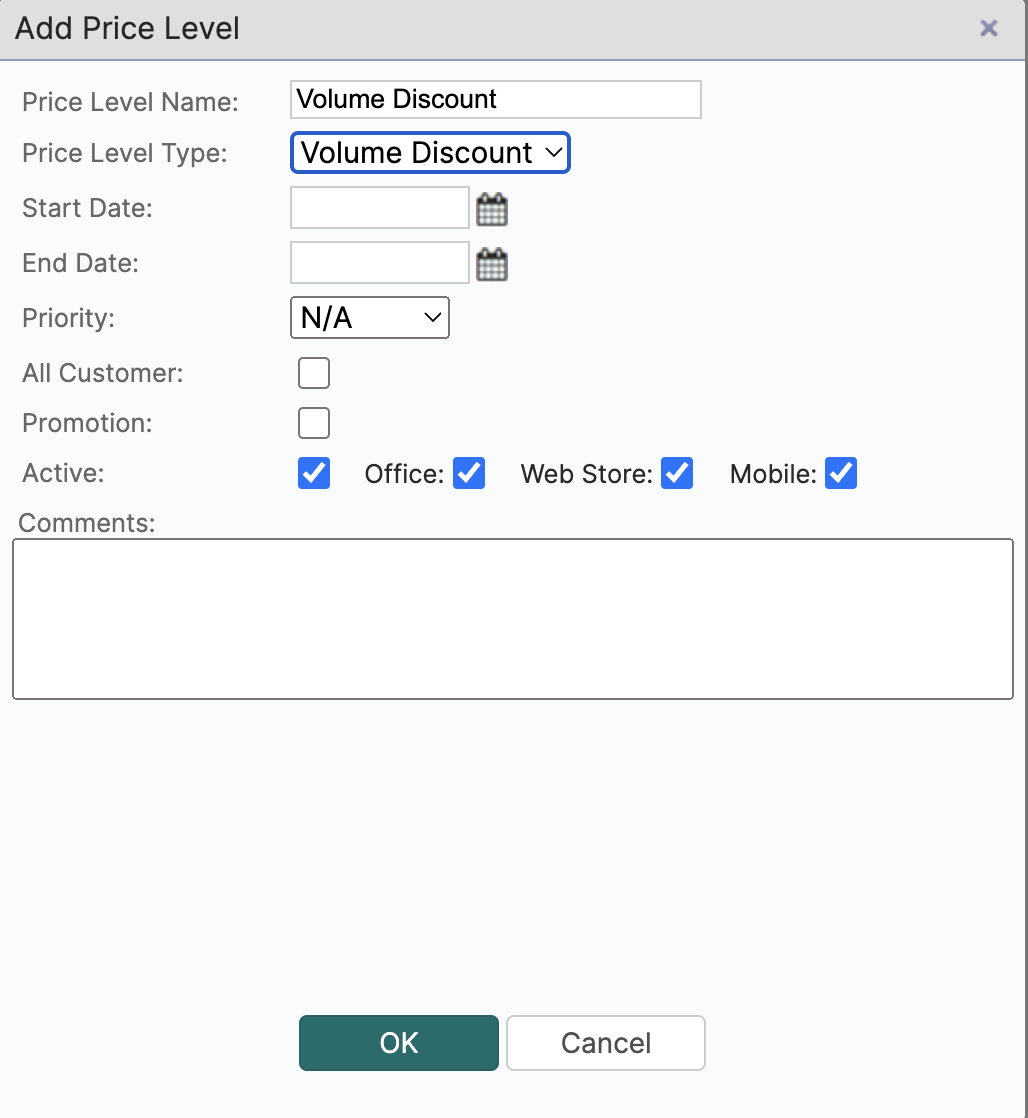
After price level is created, add Item with volume discount to the price level.
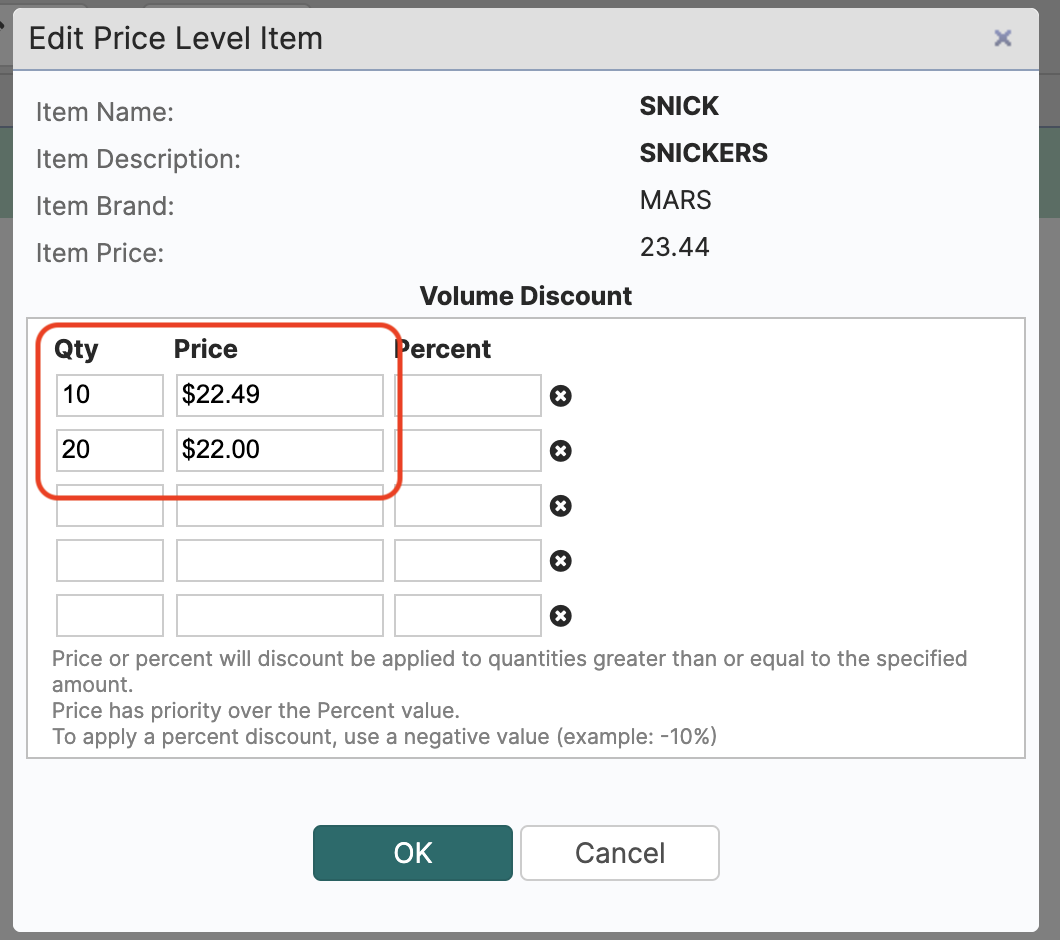
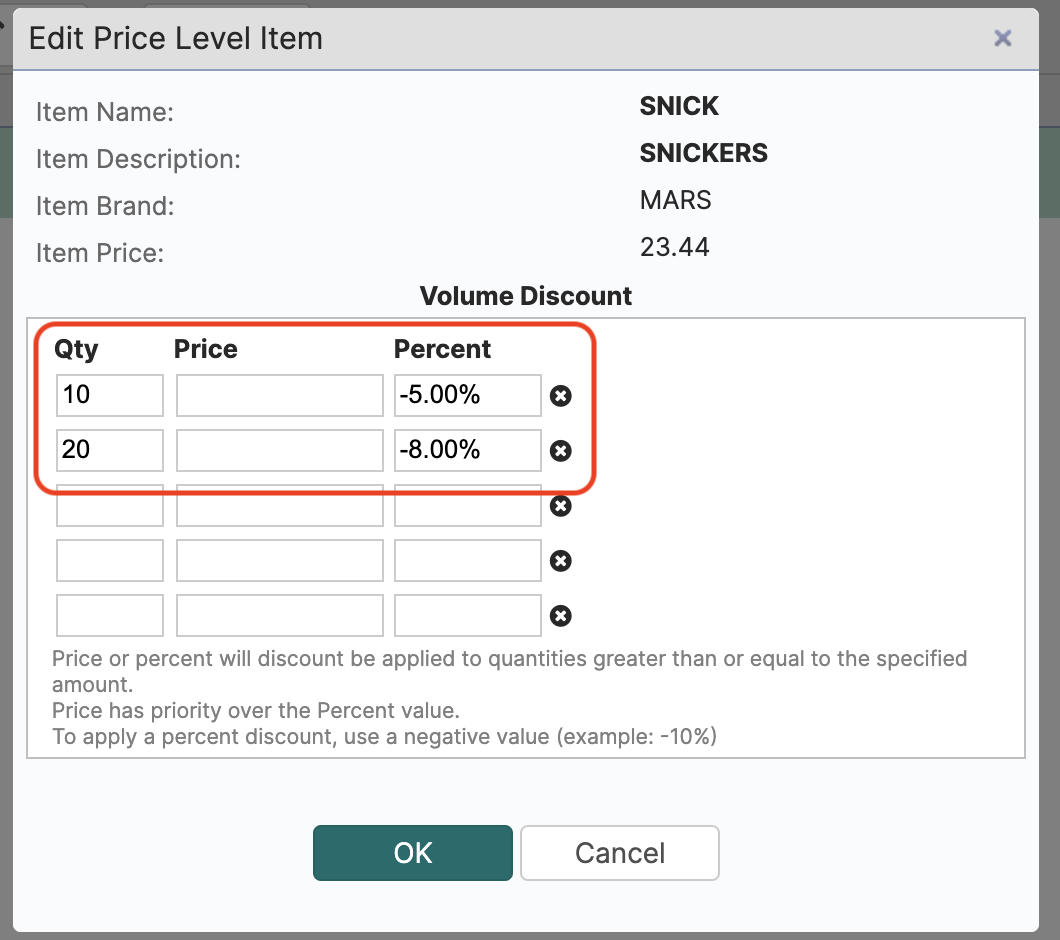
Then Click Edit on added item and provide volume discount information.
Quantity is provided in Base Unit of the item, You can provide price or percent adjustment based on Item Price.
¶ Price
¶ Percent Adjustment
¶ Free per Quantity Price Level
You are also able to create price levels that grant your customers free items for purchasing a certain number of the same product i.e. the so called 2+1 or 3+1 etc. price levels.
To create such promotion, firstly, make sure that the appropriate settings are turned on.
Tools → Settings → Catalog Settings → ✅ Enable Free Items from Price Level
to learn more about Catalog Settings: /catalog_settings
Navigate to: Item Management → Price Level Manager → Add
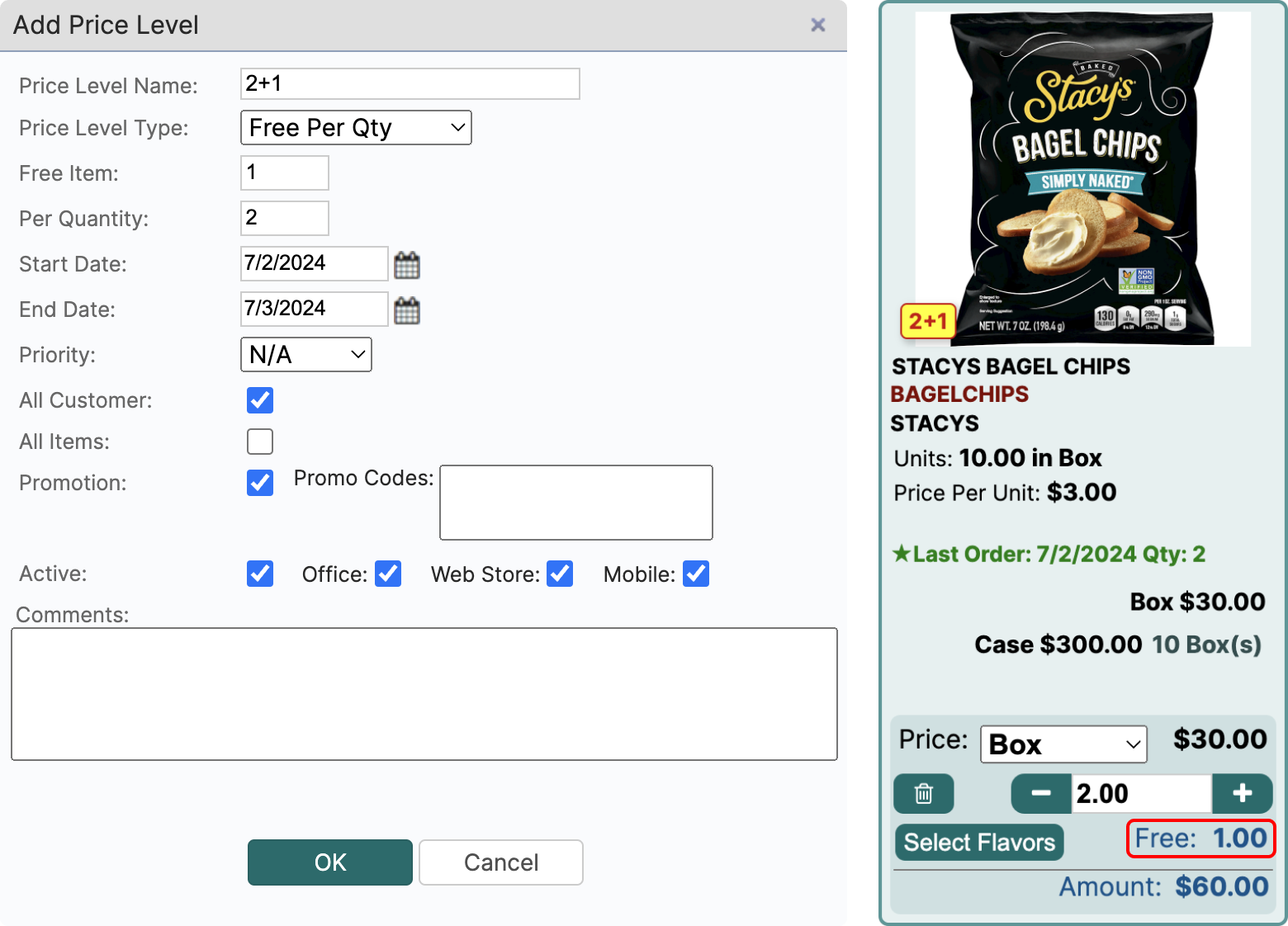
- Give your price level a name. This name will be displayed as a tag on the item, which the price level applies to.
- Price Level Type - choose Free per Qty
- Free Item - the amount of free items granted
- Per Quantity - the amount of items required to be added to cart to qualify for the price level
- Priority - if there are multiple price levels, set your priority according to your preference.
Price levels with a lower priority number take precedence over others. - All Customer - if checked, this price level will be applied to all customers
- All Items - if checked, this price level will be applied to all items. If you don't check this box, make sure to add items to the price level after you create it.
- Promotion - in case you mark this price level as a promotion, the name will be displayed as an item tag in web store. To make this promotion visible, you have to enable Promotion Tags in Catalog Settings.
- Active - choose where this price level can be viewed
- Comments - for internal use only. Customers do not see these comments.
¶ Mix & Match Free Items
Mix & Match is a promotion that gives you free items when you buy enough of a qualifying group of products — you don't have to buy a lot of any *one* item, just enough combined across the group.
Free Mix & Match is a promotion type you can set up to reward your customers with free items once they buy enough combined quantity across a group of products — not just one item. Customers mix and match any products in the group toward the threshold, then choose which item(s) they'd like for free.
Example: "Buy 10, get 1 free" across a group of items. A customer buying 4 of one, 3 of another, and 3 of a third still reaches 10 and earns 1 free item of their choice.
- In the Portal, go to Price Level and create (or edit) a price level.
- Set the Price Level Type to "Free Mix & Match" This reveals the settings specific to this promotion type:
- Free Item: how many free units are granted per threshold reached
- Per Quantity: the combined quantity threshold customers must reach
- Unit of Measure: which unit counts toward the threshold - only items ordered in this unit are counted or eligible
- Options: leave as "None," or select "Apply To Lowest Price Items" to restrict free selections to only the cheapest product(s) in the group (see below) - Choose whether the promotion applies to all items or only a specific item pool, and whether it applies to all customers or only specific customers.
- Set the start/end dates, and make sure Web Store is enabled for this price level.
THE "LOWEST PRICE" OPTION
When enabled, customers can only choose the lowest-priced item(s) in the group as their free item — not any item they like. For example, if the group includes items priced $13, $10, $8, and $8, only the two $8 items would be available for the customer to select as free. Use this if you want to protect margin on your higher-priced items while still offering the promotion.
HOW CUSTOMERS EXPERIENCE IT
- As customers add qualifying items to their cart, a banner shows how many free items they've earned.
- Customers pick which item(s) they want for free using a plus/minus selector in the Mix & Match panel — nothing is added automatically.
- If a customer removes items and drops below the threshold, any free item picks that are no longer earned are cleared automatically.
- If a customer has unclaimed free items at checkout, they're shown a reminder giving them the option to go back and claim them, or submit the order as-is.
- Items already covered by a "buy this item, get this item free" (Free Per Quantity) promotion are excluded from Mix & Match — they can't be double-counted or double-discounted.
FREQUENTLY ASKED QUESTIONS
Q: Can a customer split their free items across multiple products?
A: Yes, as long as each product is part of the promotion's group and in the correct unit.
Q: What happens if a customer qualifies but doesn't pick a free item?
A: Nothing is added automatically — the order simply won't include a free item unless the customer selects one before submitting.
Q: Can I restrict this promotion to specific customers or specific items?
A: Yes — use the "All Customer" and "All Items" settings on the price level, along with the customer and item pool assignments, the same way you would for other price level types.
Q: Is this available for orders I enter for a customer in the Portal?
A: Not yet. This promotion currently only applies on the Web Store channel.
¶ Promotion Bar in the Web Store
We've added a Promotion Bar to the Web Store — a quick way to put your active promotions right in front of your customers while they shop.
What your customers see
At the top of the Web Store item list, customers now see a horizontal row of colored promotion tags. Each tag shows the promotion name, a short description, the promotion type, and the end date (e.g., "Ends 08/15"). Colors indicate the promotion type:
- Orange — Discount
- Green — Free Items
- Purple — Volume Discount
- Pink — Free Mix & Match
Clicking a tag instantly filters the item list to show only the items included in that promotion, so customers can browse and add them to the cart without hunting for deals. The bar can be collapsed with one click, and it stays out of the way for the rest of the browsing session.
How to turn it on
- Enable the bar for your store: In the Portal, go to Settings → Catalog Settings → Customer's Web Store and check "Show Promotions Bar".
- Choose which promotions appear: Open a price level (Price Levels → edit) and check "Show on Promotion Bar". This is a separate switch from the existing "Promotion" flag, so you have full control over which promotions are featured in the bar.
A promotion appears in the bar only when it is active, in its start/end date range, enabled for the Web Store, has items assigned, and applies to the customer viewing it — so each customer sees only the promotions available to them.
Tips
- Keep promotion names short and put the key benefit in the description — the tags are compact.
- Set an end date on promotions: customers see "Ends" on the tag, which adds urgency.
- Feature only your best offers to keep the bar scannable; customers can scroll for more.